
code: GitHub
Building a Computer Vision Pong Arcade Game in Python
If you’re fascinated by computer vision and enjoy retro games, you’ll love creating a Pong arcade game that uses hand tracking to control the paddle. This project combines the power of Python with libraries like Pygame and OpenCV to create an interactive and engaging game. Let’s dive into the code and see how it’s done!
Here’s a complete walkthrough of the code for our Computer Vision Pong Arcade Game.
Importing Libraries

- pygame: A set of Python modules designed for writing video games.
- pygame.locals: Contains constants used in Pygame (e.g., for event handling).
- sys.exit: Exits the program.
- cv2: OpenCV library for computer vision tasks.
Initialization

- window_size: Sets the game window size to 600×600 pixels.
- pygame.init(): Initializes all Pygame modules.
- screen: Sets the display mode for the window.
- pygame.display.set_caption(): Sets the window title.
- pygame.image.load(): Loads an image to be used as the window icon.
- pygame.display.set_icon(): Sets the window icon.
Game Variables
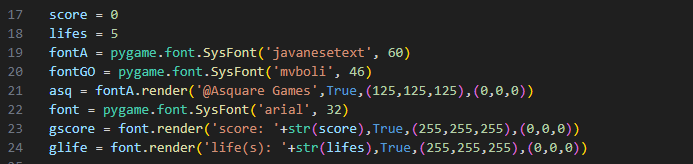
- score: Tracks the player’s score.
- lifes: Tracks the number of lives the player has.
- fontA, fontGO, font: Define different fonts for rendering text.
- asq, gscore, glife: Render text for display (e.g., score, lives).
Paddle and Ball
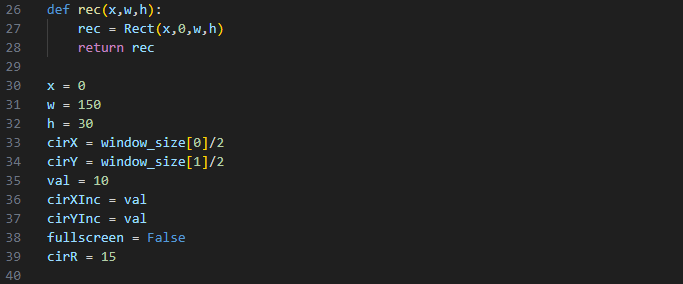
- rec(): A function to create a rectangle for the paddle.
- x, w, h: Paddle’s x-coordinate, width, and height.
- cirX, cirY: Ball’s x and y coordinates (initially centered).
- val, cirXInc, cirYInc: Ball’s movement speed and direction.
- fullscreen: Tracks if the game is in fullscreen mode.
- cirR: Radius of the ball.
AI Hands Class
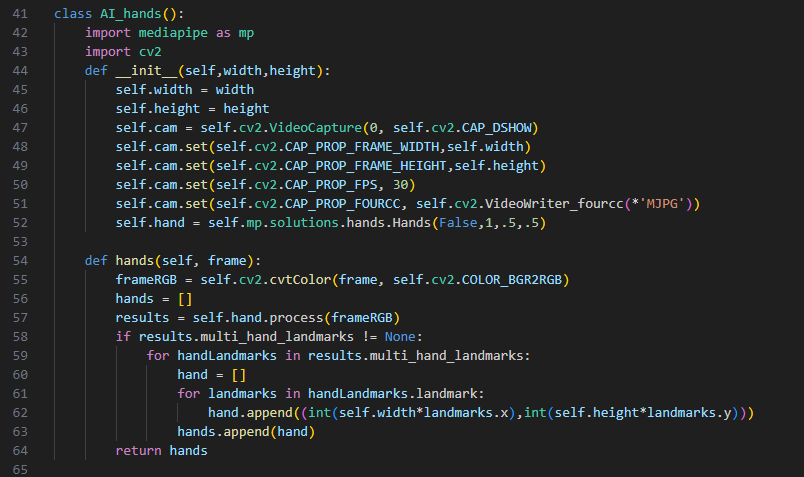
- mediapipe: Used for hand tracking.
- cv2: OpenCV for computer vision tasks.
- init(): Initializes the webcam and Mediapipe hands model.
- hands(): Processes the frame to detect hand landmarks and return their positions.
Main Game Loop
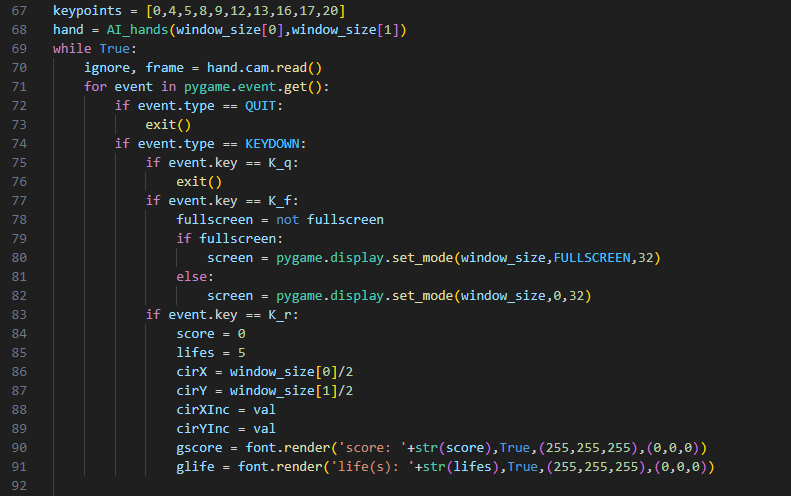
- keypoints: Hand landmarks used for controlling the paddle.
- hand: Instance of
AI_handsfor hand tracking. - Main loop: Handles events, updates game state, and renders the game.
Event Handling and Hand Position Update

- pos: Gets hand positions.
- x, y: Updates paddle position based on hand position.
- Bounds checking: Ensures paddle stays within window bounds.
- screen.fill(): Clears the screen.
Ball Movement and Collision Detection
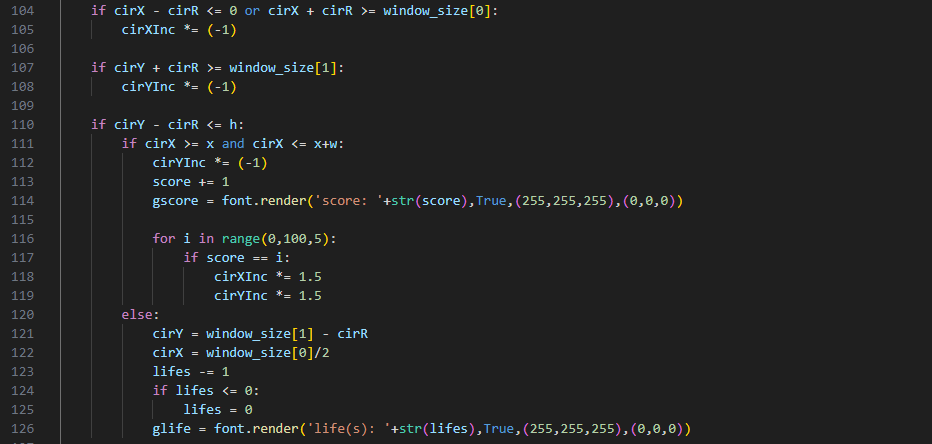
- Ball movement: Updates ball position.
- Wall collision: Reverses ball direction when it hits a wall.
- Paddle collision: Detects if the ball hits the paddle and updates score.
- Speed increase: Increases ball speed as score increases.
- Life decrease: Resets ball position and decreases life if the ball misses the paddle.
Game Over and Drawing
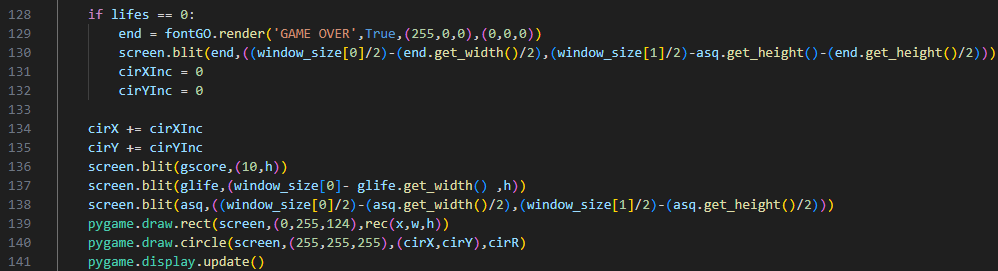
- Game Over: Displays “GAME OVER” and stops ball movement.
- Drawing: Updates positions, draws text, paddle, and ball on the screen.
- pygame.display.update(): Refreshes the screen to show updates.
OpenCV Display
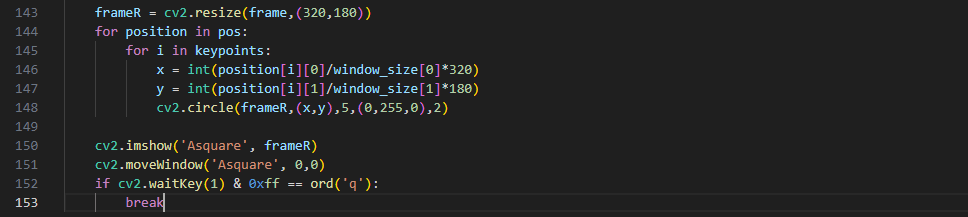
- frameR: Resizes the webcam frame for display.
- Draw keypoints: Draws circles on detected hand landmarks.
- cv2.imshow(): Displays the webcam frame.
- cv2.waitKey(): Checks for the ‘q’ key press to exit.
Cleanup

- Release resources: Frees the webcam and closes all OpenCV windows.
- pygame.quit(): Shuts down all Pygame modules.
How It Works
Initialization:
- Pygame and OpenCV are initialized.
- The game window is set up with a specified size and title.
- Game variables like score, lives, and font styles are initialized.
Class AI_hands:
- This class uses Mediapipe to detect hand landmarks in the camera feed.
- It captures frames from the webcam and processes them to identify hand positions.
Main Game Loop:
- The game loop captures frames from the webcam and processes user input.
- Paddle position is updated based on hand landmarks.
- The ball’s position is updated, and collisions with walls and the paddle are detected.
- The score and lives are updated accordingly.
Drawing and Display:
- The game elements (paddle, ball, score, lives) are drawn on the screen.
- The processed webcam feed with hand landmarks is displayed using OpenCV.
Conclusion
This project is a great way to learn about computer vision and game development. By combining Pygame and OpenCV, you can create interactive and fun applications. Feel free to customize the game further and add your own features! You can view the full code on GitHub.
Happy coding!
 annonymousAsquare(aiBard)